VPN leaks explained: DNS, IPv6, and WebRTC (and how to check yours)

TL;DR
- A VPN leak happens when your VPN appears active, but some of your internet traffic bypasses the encrypted tunnel, exposing your real IP address or browsing activity.
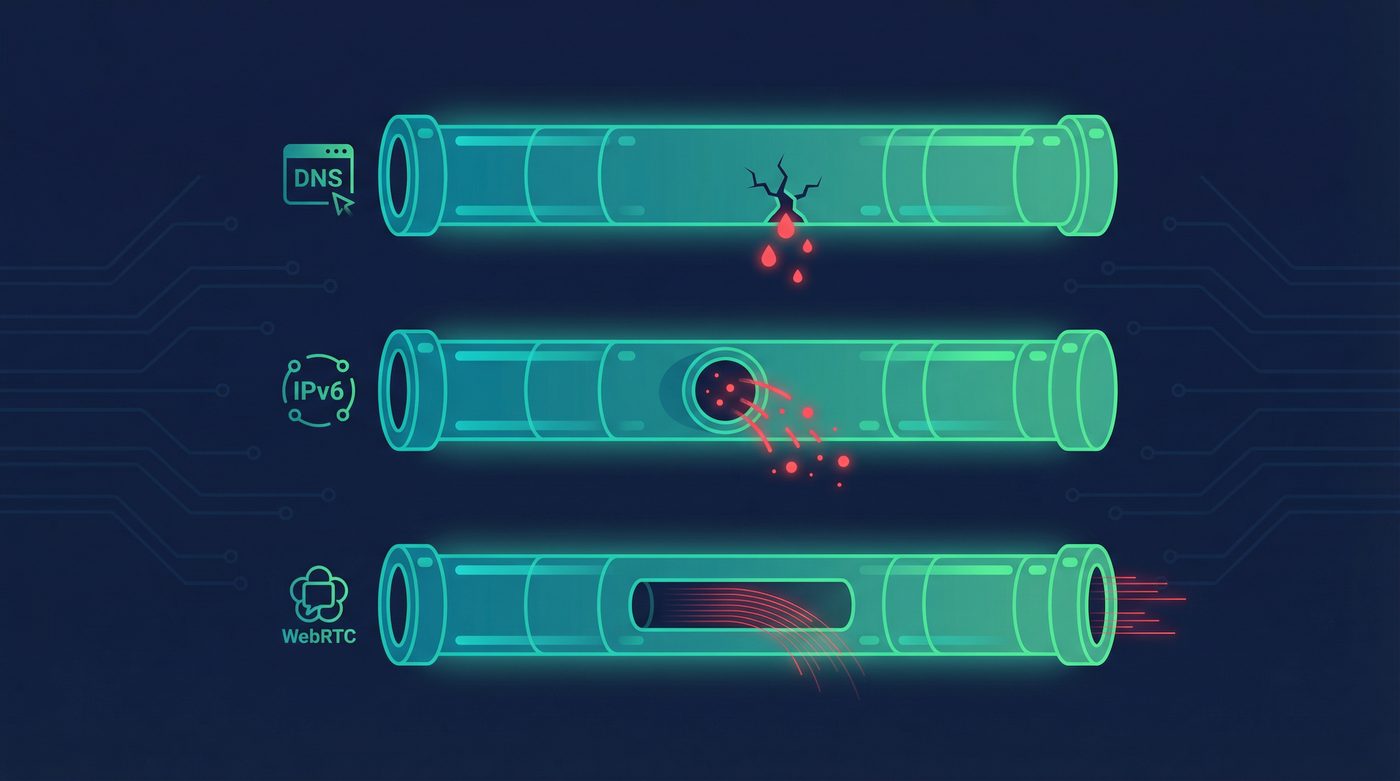
- The three most common types are DNS leaks, IPv6 leaks, and WebRTC leaks.
- You can test for leaks using free tools like ipleak.net and dnsleaktest.com.
- To prevent leaks, use a VPN with a built-in kill switch, Private DNS, and proper IPv6 handling, or disable vulnerable features in your browser.
What a VPN Does (and Doesn't)
✅ A VPN does: - Encrypts your connection between your device and the VPN server - Hides your IP from many websites and services - Helps reduce exposure on public networks - Routes traffic through a server you choose (changes apparent location)
❌ A VPN doesn't: - Make you anonymous - Stop all tracking (cookies and fingerprinting still exist) - Prevent WebRTC leaks if your browser settings expose your IP - Protect you if the VPN connection drops without a kill switch
You connect to your VPN, the icon turns green, and you assume your traffic is secure. But what if it isn't?
Sometimes, a VPN appears to be working perfectly, but a flaw in your operating system, browser, or the VPN software itself allows some data to bypass the encrypted tunnel. This is called a VPN leak. When a leak occurs, your real IP address, your location, or the websites you are visiting can be exposed to your internet service provider (ISP) or the websites you visit.
This guide explains the three major types of VPN leaks—DNS, IPv6, and WebRTC—why they happen, how to test for them, and how to fix them.
What Are VPN Leaks and Why Do They Matter?
A VPN is designed to route all of your internet traffic through an encrypted tunnel. A leak happens when some of that traffic "leaks" outside the tunnel and travels over your regular, unencrypted internet connection.
Why does this matter? Because if your VPN is leaking, it defeats the purpose of using one.
- Your ISP might be able to see which websites you are visiting.
- Websites might be able to see your real IP address and physical location.
- Network administrators on public Wi-Fi might be able to intercept your DNS requests.
Leaks often happen silently. Your VPN app will still say "Connected," and your main IP address might even show up as the VPN server's IP if you check a basic IP lookup tool. But under the surface, specific types of data are slipping through.
The 3 Major Types of VPN Leaks
1. DNS Leaks
What it is:
The Domain Name System (DNS) is the phonebook of the internet. It translates human-readable domain names (like privatebyright.com) into IP addresses that computers use to communicate. When you use a VPN, your DNS requests should be routed through the VPN tunnel to the VPN provider's DNS servers. A DNS leak occurs when your device sends these requests to your ISP's DNS servers instead.
What it exposes:
Your ISP (and anyone monitoring your local network) can see every website you visit. They don't see what you do on the website, but they know you went there.
How it happens:
Operating systems sometimes get confused when switching network interfaces. Windows, in particular, has a feature called "Smart Multi-Homed Name Resolution" that sends DNS requests to all available network adapters and uses whichever responds fastest. Often, the ISP's unencrypted DNS server responds faster than the VPN's encrypted one.
How to fix it:
Use a VPN that provides its own Private DNS servers and forces all DNS requests through the encrypted tunnel. Additionally, a system-level kill switch can prevent DNS requests from leaking if the VPN connection briefly drops.
Learn more: Private DNS: why DNS leaks happen and how Private DNS helps
2. IPv6 Leaks
What it is:
Every device on the internet needs an IP address. We are currently transitioning from the older IPv4 system (e.g., 192.168.1.1) to the newer IPv6 system (e.g., 2001:0db8:85a3:0000:0000:8a2e:0370:7334) because we ran out of IPv4 addresses. An IPv6 leak happens when your VPN only routes IPv4 traffic through the tunnel, leaving your IPv6 traffic exposed.
What it exposes:
Your real IPv6 address, which can reveal your physical location and identity to the websites you visit.
How it happens:
Many VPN providers still do not fully support IPv6. If your ISP provides you with an IPv6 address, and you visit a website that supports IPv6, your device might bypass the VPN entirely to connect via IPv6, because the VPN doesn't know how to handle it.
How to fix it:
You have two options. The best option is to use a VPN that offers full IPv6 support, routing both IPv4 and IPv6 traffic through the tunnel. The alternative is to use a VPN that actively blocks all IPv6 traffic while connected, forcing your device to fall back to the protected IPv4 connection. You can also manually disable IPv6 in your operating system's network settings.
3. WebRTC Leaks
What it is:
Web Real-Time Communication (WebRTC) is a technology built into modern web browsers (like Chrome, Firefox, and Edge) that allows for direct peer-to-peer communication. It's what makes browser-based video calls, voice chat, and some file-sharing work without needing extra plugins. A WebRTC leak occurs when a website uses this technology to bypass your VPN and discover your real IP address.
What it exposes:
Your real public IP address, and sometimes your local network IP address.
How it happens:
WebRTC is designed to find the most direct path between two devices. To do this, it uses a protocol called STUN (Session Traversal Utilities for NAT) to discover your real IP address, even if you are behind a VPN or a router. Because WebRTC is a browser feature, not a network feature, a standard VPN connection cannot always stop it.
How to fix it:
The most reliable fix is to disable WebRTC in your browser. - In Firefox, you can disable it in the about:config settings (search for media.peerconnection.enabled and set it to false). - In Chrome and Edge, you cannot easily disable it natively, but you can use privacy extensions (like uBlock Origin) to prevent WebRTC from leaking your local IP. - Alternatively, use a privacy-focused browser like Brave, which has built-in WebRTC leak protection.
How to Test for VPN Leaks
You shouldn't just trust that your VPN is working—you should verify it. Testing for leaks is simple and takes only a few minutes.
Step-by-Step Testing Guide
Before you start, make sure your VPN is disconnected.
- Go to an IP lookup site like ipleak.net or dnsleaktest.com.
- Note your real IP address and the ISP listed.
- Now, connect to your VPN. Choose a server in a different country to make the results obvious.
- Refresh the testing page.
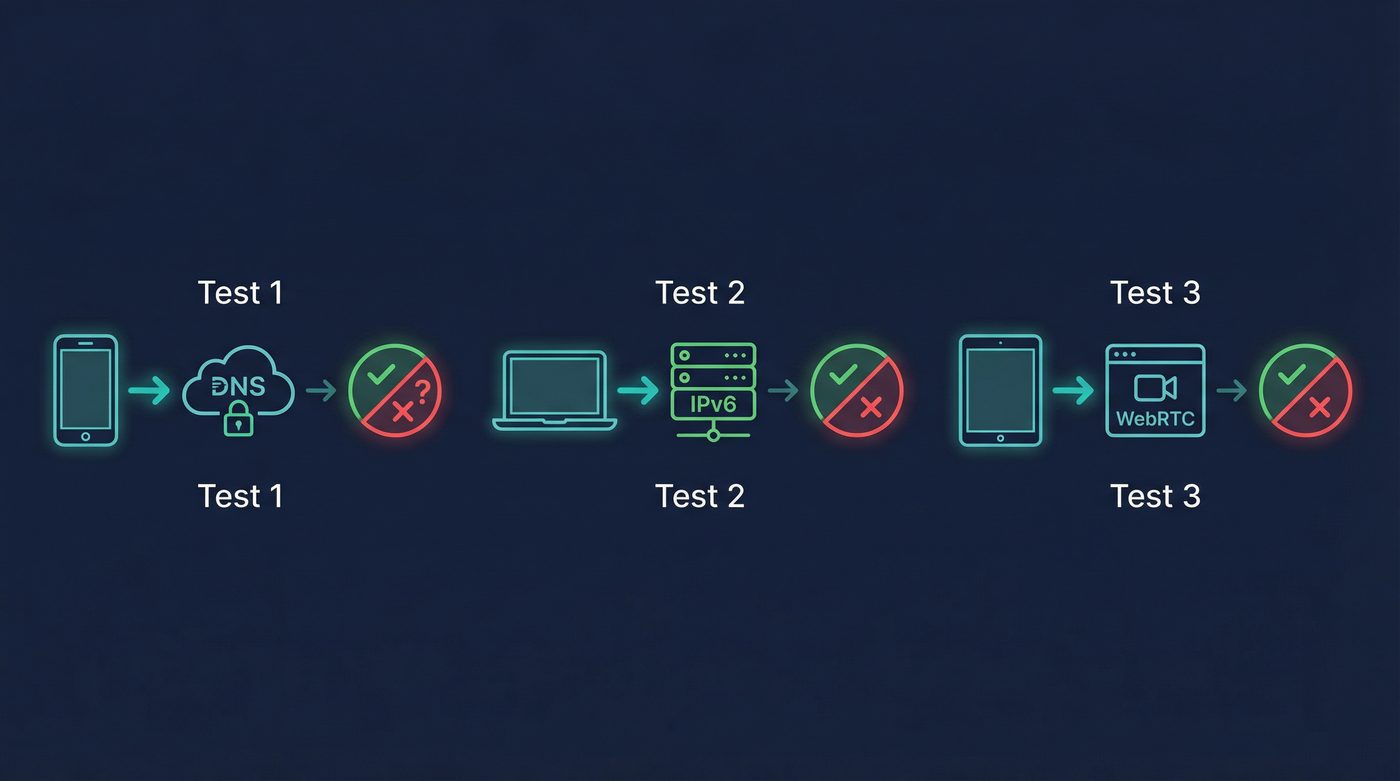
Test 1: DNS Leak Test
Look at the "DNS Addresses" section on ipleak.net, or run the "Extended Test" on dnsleaktest.com. - Pass: All the DNS servers listed belong to your VPN provider or are located in the country you connected to. - Fail (Leak): You see your real ISP's name, or servers located in your actual physical location.
Test 2: IPv6 Leak Test
Look at the "IPv6 Address" section on ipleak.net. - Pass: It says "Not reachable" (meaning IPv6 is blocked) or it shows an IPv6 address that belongs to your VPN provider. - Fail (Leak): It shows an IPv6 address that belongs to your real ISP.
Test 3: WebRTC Leak Test
Look at the "WebRTC detection" section on ipleak.net. - Pass: It shows the same IP address as your VPN connection, or it shows no IP address at all. - Fail (Leak): It shows your real public IP address.
What to Do If Any Test Fails
If you detect a leak, your first step should be to check your VPN app's settings. Ensure that features like "DNS Leak Protection," "IPv6 Leak Protection," and the "Kill Switch" are enabled. If they are enabled and you are still leaking, you may need to switch to a more reliable VPN provider or adjust your browser settings (for WebRTC).
Learn more: How to check if your VPN is working: IP, DNS leaks, a quick guide
Less Common Leaks to Watch Out For
While DNS, IPv6, and WebRTC are the most common culprits, there are a few other edge cases where your data might slip out.
Boot-Time Leaks
When you turn on your computer, it connects to the internet before your VPN app has a chance to launch and establish a connection. During this brief window, your operating system and background apps might send data (like update checks or telemetry) over your unencrypted connection. A system-level kill switch that blocks all traffic until the VPN is active can prevent this.
IPv6 DNS Leaks
This is a combination of two leaks. Even if your VPN routes IPv4 DNS requests correctly, if it ignores IPv6, your operating system might send DNS requests over the unencrypted IPv6 network. This exposes your browsing history just like a standard DNS leak.
WebRTC with Split Tunneling
Split tunneling allows you to route some apps through the VPN while letting others use your normal connection. If you route your browser through the VPN, but WebRTC is still active, the browser might use the unencrypted split-tunnel interface to discover your real IP address. If you use split tunneling, it is crucial to disable WebRTC in the browser you route through the VPN.
Learn more: Split tunneling: when to use it, risks, and best practices
The PrivateByRight Approach
We build our systems to prevent leaks by default, so you don't have to configure complex settings just to get basic protection.
Private DNS Enabled by Default
We run our own encrypted DNS servers. When you connect to PrivateByRight VPN, all your DNS requests are automatically routed through the VPN tunnel to our servers. We do not log these requests, and they never touch your ISP's network.
System-Level Kill Switch
Our kill switch is designed to block all internet traffic if the VPN connection drops unexpectedly. This prevents your real IP address from being exposed during a momentary disconnection.
IPv6 Handling
We actively manage IPv6 traffic to ensure it doesn't leak outside the tunnel. Depending on the server configuration, we either securely route IPv6 traffic through the VPN or safely block it at the network level to force IPv4 fallback, ensuring your real IPv6 address is never exposed.
Learn more:
- Kill switch: what it is, why it matters, and how to test it
- What is a VPN? How it works and what it does (in plain English)
FAQs
How often should I check for VPN leaks?
It's good practice to check for leaks whenever you install a new VPN, update your VPN software, or change your network setup (like getting a new router). Checking once a month is a reasonable baseline for most users.
Does a kill switch prevent all leaks?
No. A kill switch prevents leaks that happen when the VPN connection drops. It does not prevent WebRTC leaks (which happen inside the browser) or DNS leaks that occur while the VPN is actively connected but misconfigured.
Can my ISP see if I have a DNS leak?
Yes. If you have a DNS leak, your DNS requests are being sent to your ISP's servers. This means your ISP can see a complete list of every website you visit, even if the content of those websites is encrypted by HTTPS.
Is WebRTC dangerous?
WebRTC itself is not dangerous; it's a useful technology for video calls and peer-to-peer sharing. However, from a privacy perspective, it is a liability because it can bypass VPN interfaces to reveal your real IP address.
Will clearing my cookies fix a VPN leak?
No. Cookies are used for website-level tracking and have nothing to do with network-level VPN leaks. Clearing cookies improves privacy, but it won't stop DNS, IPv6, or WebRTC leaks.
Do free VPNs leak more often?
Often, yes. Free VPNs frequently lack the infrastructure to run their own Private DNS servers or properly handle IPv6 traffic. They also often lack robust kill switches, making them much more prone to leaking your data.
Sources & Further Reading
- Internet Engineering Task Force (IETF). (2015). "Session Traversal Utilities for NAT (STUN)." RFC 5389.
- World Wide Web Consortium (W3C). (2021). "WebRTC 1.0: Real-Time Communication Between Browsers."
- Cybersecurity and Infrastructure Security Agency (CISA). (2020). "Securing DNS Infrastructure."
- Internet Society. (2023). "State of IPv6 Deployment."
- Mozilla Developer Network. (2023). "WebRTC API."
Related Guides
- Learn more: What is a VPN? How it works and what it does (in plain English)
- Learn more: Do VPNs make you anonymous? What a VPN can and can't hide
- Learn more: Private DNS: why DNS leaks happen and how Private DNS helps
- Learn more: Kill switch: what it is, why it matters, and how to test it
- Learn more: Split tunneling: when to use it, risks, and best practices
- Learn more: How to check if your VPN is working: IP, DNS leaks, a quick guide