Kill switch: what it is, why it matters, and how to test it


TL;DR
- A kill switch monitors your VPN connection and instantly blocks internet traffic if the encrypted tunnel drops
- It prevents your real IP address and unencrypted data from leaking to your ISP or local network
- System-level kill switches block all traffic, while app-level ones only block specific applications
- Even with a kill switch, you can still experience DNS, WebRTC, or IPv6 leaks if your VPN isn't configured correctly
- You should regularly test your kill switch by intentionally dropping your connection to ensure it works
What a VPN Does (and Doesn't)
✅ A VPN does: - Encrypts your connection between your device and the VPN server - Helps reduce exposure on public networks - Hides your IP from many websites and services - Blocks traffic if the connection drops (when using a kill switch)
❌ A VPN doesn't: - Make you anonymous - Stop all tracking (cookies and fingerprinting still exist) - Prevent leaks if the kill switch is disabled or fails - Protect you from phishing, malware, or human error
You connect to a VPN, verify your IP address has changed, and start browsing. You feel secure. But what happens if your Wi-Fi flickers, your device switches networks, or the VPN server briefly goes offline?
Without a kill switch, your device will automatically reconnect to the internet using your regular, unencrypted connection. In that split second, your real IP address is exposed, and whatever you were doing is visible to your ISP or anyone monitoring the local network.
This guide explains how a kill switch prevents these leaks, the difference between system-level and app-level protection, and how to test if your setup is actually working. No marketing fluff—just the technical reality of how to keep your connection secure when things go wrong.
How a Kill Switch Works
A VPN kill switch is a security feature designed to prevent your device from sending or receiving unencrypted data outside the VPN tunnel. It acts as a fail-safe mechanism.
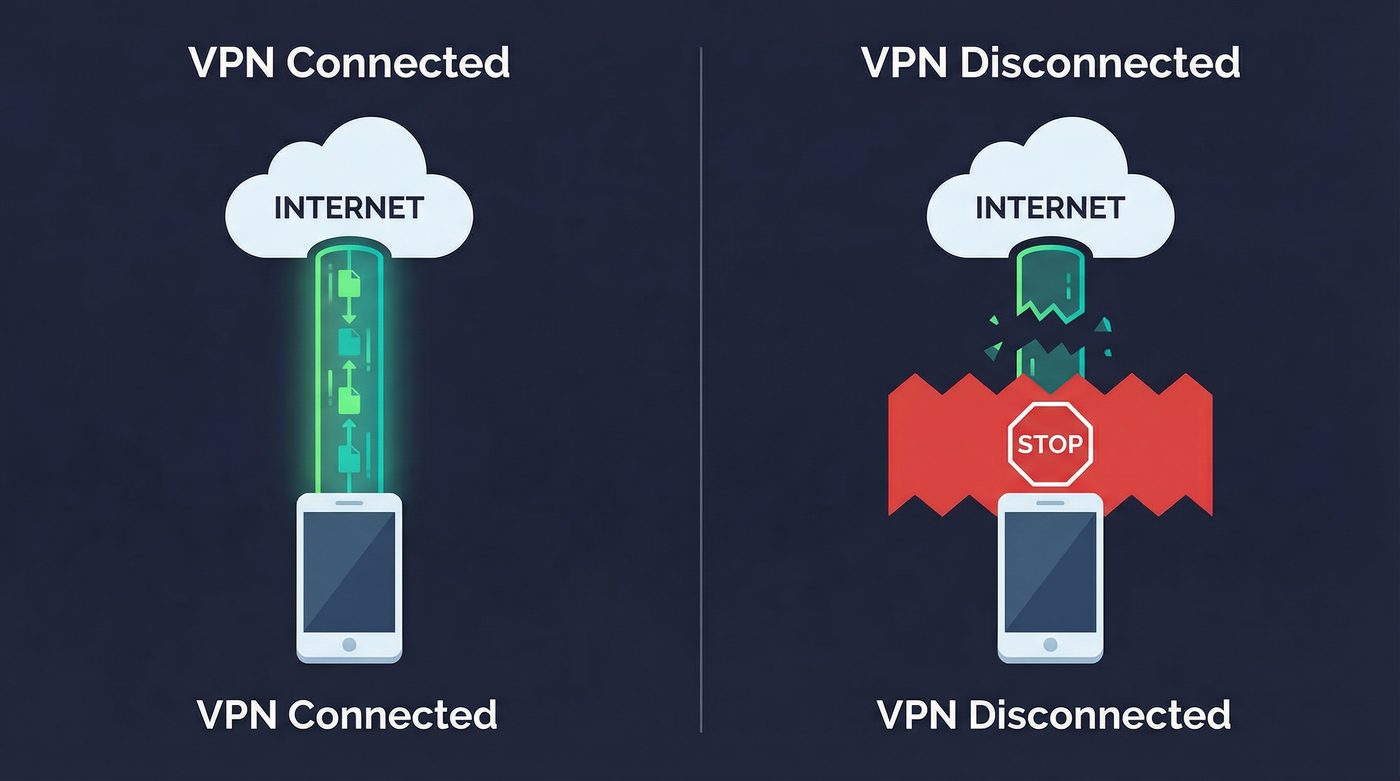
When you activate a VPN, the software creates an encrypted tunnel for your traffic. The kill switch continuously monitors this connection. If it detects that the tunnel has collapsed—due to network instability, server issues, or software crashes—it immediately blocks all internet access on your device.
The internet connection remains blocked until the VPN tunnel is successfully re-established or you manually disable the kill switch. This ensures that your real IP address and browsing activity are never exposed, even for a millisecond.
Two Types of Kill Switches: App-Level vs. System-Level
Not all kill switches operate the same way. They generally fall into two categories, each with different trade-offs.
System-Level Kill Switch
A system-level (or network-level) kill switch is the most secure option. It operates at the operating system level, modifying your device's firewall or network routing rules.
If the VPN connection drops, a system-level kill switch blocks all internet traffic across the entire device. No application, background process, or system update can access the internet until the VPN is restored.
- Pros: Maximum security; prevents any accidental leaks from background processes.
- Cons: Can be disruptive if your connection is unstable, as it completely cuts off internet access.
- Best for: High-risk users, public Wi-Fi browsing, and anyone who prioritizes security over convenience.
App-Level Kill Switch
An app-level kill switch allows you to specify which applications should be blocked if the VPN disconnects. For example, you might configure it to block your torrent client and web browser, but allow your email app to continue syncing over the regular connection.
- Pros: Highly customizable; allows non-sensitive apps to maintain connectivity.
- Cons: Less secure; requires you to manually select every app that needs protection. If you forget one, its traffic will leak.
- Best for: Users who need specific apps protected but want uninterrupted access for others.
Why It Matters: 3 Real-World Scenarios
A kill switch isn't just a theoretical security feature—it's critical for specific use cases where an IP leak could have serious consequences.
1. Public Wi-Fi Protection
When you use a public network at a coffee shop or airport, you're sharing that network with strangers. A VPN encrypts your traffic, protecting it from local packet sniffing. However, public Wi-Fi is notoriously unstable. If your connection drops and your device falls back to the unencrypted network, your session cookies, unencrypted communications, and browsing destinations become visible to anyone monitoring the network. A kill switch ensures your traffic stops the moment the encryption fails.
Learn more: VPN on public Wi-Fi: the real risks and a simple protection checklist
2. Torrenting and P2P File Sharing
Peer-to-peer (P2P) networks expose your IP address to everyone else sharing the same file. If your VPN disconnects while a torrent client is running in the background, your real IP address is instantly broadcast to the swarm. This can lead to throttling by your ISP or copyright infringement notices. A kill switch is mandatory for safe P2P activity.
Learn more: P2P, torrenting, and VPNs: privacy basics, safety, and what to avoid
3. High-Risk Research and Journalism
For journalists, activists, or researchers operating in hostile environments, an IP leak isn't just an inconvenience—it's a physical security risk. If a VPN drops while accessing sensitive information or communicating with sources, the exposure of their real IP address could reveal their physical location or identity. In these scenarios, a system-level kill switch is non-negotiable.
Learn more: VPN for high-risk users: a safer baseline setup and what a VPN won't fix
Kill Switch Limitations: What It Doesn't Fix
A kill switch only protects against VPN disconnections. It does not protect against other types of leaks that can occur while the VPN is actively connected.
DNS Leaks
When you type a website address, your device asks a Domain Name System (DNS) server to translate it into an IP address. If your VPN doesn't route these requests through its own encrypted tunnel, they "leak" to your ISP's DNS servers. Your ISP can then see every website you visit, even if the content is encrypted.
The fix: Ensure your VPN has built-in DNS leak protection and uses its own private DNS servers.
Learn more: Private DNS: why DNS leaks happen and how Private DNS helps
WebRTC Leaks
Web Real-Time Communication (WebRTC) is a browser feature used for voice and video chat. It can bypass the VPN tunnel and reveal your real IP address to websites, even if the VPN and kill switch are active.
The fix: Disable WebRTC in your browser settings or use a reputable browser extension to block WebRTC leaks.
Learn more: VPN leaks explained: DNS, IPv6, and WebRTC — and how to check yours
IPv6 Leaks
Many modern networks use IPv6 addresses alongside the older IPv4 standard. If your VPN only routes IPv4 traffic, your IPv6 traffic will leak outside the tunnel, exposing your real IP address.
The fix: Check if your VPN supports IPv6 routing or explicitly blocks IPv6 traffic to prevent leaks.
Boot-Time Leaks
When you restart your computer, there is a brief window before the VPN software launches where your device might connect to the internet and transmit data.
The fix: Enable "launch on startup" and "connect on startup" in your VPN settings, and ensure the kill switch is configured to block traffic until the connection is established.
How to Test Your Kill Switch
Don't assume your kill switch works—test it. Here is a step-by-step guide to verifying your protection.
Basic Test Procedure
- Connect to your VPN: Open your VPN app, ensure the kill switch is enabled in the settings, and connect to a server.
- Check your IP: Visit a site like ipleak.net to confirm your IP address has changed to the VPN server's IP.
- Start a continuous ping: Open your command prompt or terminal and type
ping google.com -t(Windows) orping google.com(Mac/Linux). You should see continuous replies. - Force a disconnect: Use your VPN app's interface to disconnect, or forcefully close the VPN application process via your task manager.
- Observe the ping: The ping replies should immediately stop, indicating that internet access is blocked.
- Try browsing: Open a new browser tab and try to load a website. It should fail to load.
- Reconnect: Reconnect the VPN. The ping replies should resume, and browsing should work again.
Learn more: How to check if your VPN is working: IP, DNS leaks, a quick guide
Advanced Test: Simulating Network Interruption
The basic test checks if the software responds to a manual disconnect. To test how it handles unexpected network drops:
- Connect to the VPN and start the continuous ping as described above.
- Disable your network adapter: On a laptop, turn off Wi-Fi or unplug your Ethernet cable.
- Wait a few seconds, then re-enable Wi-Fi or plug the cable back in.
- Observe the behavior: The kill switch should block traffic while the network is down and continue blocking it until the VPN successfully re-establishes the tunnel. If you see ping replies before the VPN says "Connected," your kill switch failed.
The PrivateByRight Approach
We design our systems to prioritize security by default, minimizing the risk of accidental exposure.
System-Level by Default
Our kill switch operates at the system level by default, modifying network routing to ensure no traffic escapes the encrypted tunnel if the connection drops. It blocks all internet access until the VPN is restored.
Configurable Exceptions
While system-level protection is the default, we understand that some users need flexibility. Our app allows you to configure specific application exceptions (split tunneling) while maintaining the system-level block for everything else.
Integrated with Private DNS
Our kill switch works in tandem with our Private DNS infrastructure. If the connection drops, both standard internet traffic and DNS queries are immediately blocked, preventing both IP and DNS leaks.
FAQs
Should I leave my kill switch on all the time?
Yes. If you are using a VPN for privacy or security, the kill switch should always be enabled. Without it, a momentary network drop can expose your real IP address and browsing activity.
Why does my internet stop working when I close my VPN app?
If you have a system-level kill switch enabled, it is doing its job. It blocks internet access when the VPN is not connected. To restore normal internet access, you must either reconnect the VPN or manually disable the kill switch in the app settings.
Does a kill switch slow down my internet?
No. A kill switch is a set of firewall or routing rules on your device. It does not add overhead or latency to your connection. It only activates when the connection drops.
Is an app-level kill switch enough for torrenting?
An app-level kill switch can protect your torrent client, but it is less secure than a system-level switch. If you configure it incorrectly or forget to add a related background process, your IP could still leak. A system-level kill switch is recommended for P2P activity.
Do mobile VPNs have kill switches?
Yes, most reputable mobile VPNs include a kill switch. On Android, this is often integrated into the OS settings as "Always-on VPN" and "Block connections without VPN." On iOS, it is typically managed within the VPN app itself.
Sources & Further Reading
- Internet Engineering Task Force (IETF). (2015). RFC 7739: Security Implications of IPv6 on IPv4 Networks.
- National Institute of Standards and Technology (NIST). (2021). Guide to Enterprise Telework, Remote Access, and Bring Your Own Device (BYOD) Security.
- Electronic Frontier Foundation (EFF). (2023). Surveillance Self-Defense: Choosing the VPN That's Right for You.
- Cybersecurity and Infrastructure Security Agency (CISA). (2022). Securing Enterprise VPNs.
- WireGuard. (2024). WireGuard: Fast, Modern, Secure VPN Tunnel.
Related Guides
- Learn more: VPN on public Wi-Fi: the real risks and a simple protection checklist
- Learn more: P2P, torrenting, and VPNs: privacy basics, safety, and what to avoid
- Learn more: VPN for high-risk users: a safer baseline setup and what a VPN won't fix
- Learn more: Private DNS: why DNS leaks happen and how Private DNS helps
- Learn more: VPN leaks explained: DNS, IPv6, and WebRTC — and how to check yours
- Learn more: How to check if your VPN is working: IP, DNS leaks, a quick guide